Jun
07
Posted by Cristy under
Digital,
How To's,
Layouts,
Technique,
Tools
There are many ways to make selections in Photoshop. Some are easy, some can get tricky. I find one of the easiest and fastest ways to select text for example, whether it’s been rasterized or not, and as long as it’s in its own layer is by holding down the APPLE (Command) key and clicking on the text layer. This method is more accurate than say using the MagicWand, especially if you’ve added effects or blending options. The same goes for selecting artwork in other layers.
This tip has come in handy many a times.
Try it!
Happy Scrapping!
Mar
06
Posted by Cristy under
How To's,
Just Scrapbook,
Technique
Here’s a quick tip I learned a few years back and still amazes me.
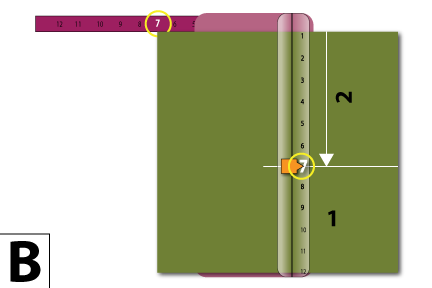
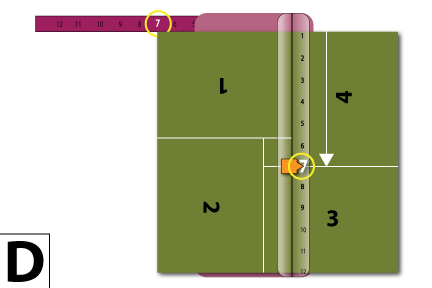
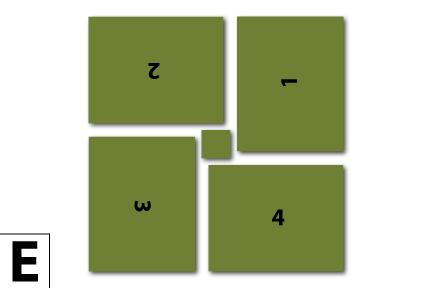
Cut 4 – 5×7 Mats out of 1 – 12×12 paper or cardstock and have a bonus journal square left over.
1. Using a cutter like Fiskar’s Personal Trimmer, open the swing arm and line up your 12×12 paper on the 7″ mark (fig. A).
2. Proceed to cut taking the blade down to the 7″ mark along the blade guide (fig. A).

3. Next turn the 12×12 paper 90º Clockwise, and repeat steps 1. and 2. (fig. B)

4. Turn the 12×12 paper another 90º Clockwise, and repeat steps 1. and 2. (fig. C)

5. Once again, turn the 12×12 paper 90º clockwise and repeat steps 1. and 2 (fig. D)

6. That’s it! You should have 4 perfect 5×7 mats and 1 journal square (fig. E)

Matting your 4×6 pictures couldn’t be any easier! Amazing!!
Sep
10
Posted by Cristy under
New Products,
Technique,
Tools
Ok, is anyone freaking out about the discontinuation of Kokuyo brand adhesives????!!!!
Aaaahhh!!!!! I sure am!
I finally found an adhesive that works practically on everything and now I have to start the search again!!!
How frustrating!
I know some of my scrapbooking pals are upset about the end of Kokuyo adhesives as well, so I thought I’d post about this dilemma and see what adhesives you are using.
For years I’ve used Hermafix, mainly the double-sided squares in the dispenser, and they work really well, except when it comes to using Bazzill cardstock and then that’s where Kokuyo came in and worked like a wonder!!! Sniff, sniff…
So, please comment. Let me know what’s your favorite adhesive(s). I’ll post a summary or a list from 1 to 10 and hopefully this will help us all to keep scrapbooking fun not frustrating.
May
27
Posted by Cristy under
cricut,
How To's
Here’s a tip I just learned about and have started incorporating into my paper piecing collections.
Blackout SVG files!
What are they?
A blackout file is an SVG file which contains the outline of an assembled paper piecing pattern.
Genius!!!
This makes it extra easy to assemble the patterns! Plus, makes the whole thing much sturdier!
Here’s a sample of one my latest paper piecing buddies and its blackout file:


So,
Send the pieces including the blackout file to cut and assemble the pattern by laying each piece over the blackout using the outlines as a guide!
Genius!
Happy Scrapping!
Apr
24
Posted by Cristy under
Uncategorized
If you’ve purchased my paper piecing patterns you’ve noticed that each pattern has several SVG files. One SVG file per color. This way you’ve been able to save on paper.
If you’ve tried to keep the pattern scaled properly it’s a bit difficult because SCAL imports files in crazy sizes, not the size the file has been saved in.
To solve this problem just:
1. Import one SVG file
2. Scale it to the size you want
3. Send it to cut
4. Then before you delete it import the next SVG file of the pattern
5. Scale that file to the first one you imported
6. Delete the first file you already cut
7. Send the remaining file to cut
8. Repeat steps 4 thru 7 until you have the whole pattern cut.
Oct
29
Posted by Cristy under
Craft Robo,
cricut,
Technique,
Tools
Personal die cutters are gaining popularity by leaps and bounds! You all know my favorite is the Craft Robo but, most of my scrapbooking friends have the Cricut. And now they all have the Sure Cuts a Lot software, better known as SCAL, which works with the Cricut.
Haven’t heard about SCAL, click here to learn more!
SCAL reads SVG files. For those familiar with PhotoShop and Illustrator it is very easy to save a file in SVG format. For those who don’t have access to these programs I’d like to offer my services!
First I’d like for you to know that all my paper piecing patterns are available in various formats including SVG. You can find patterns at The Shop.
Second, if you have patterns you’d like to use with your Cricut and don’t know how or don’t have time to make them into SVG files you can send them to me via email and I’ll convert them for you. Go to The Shop or click here on SVG FILE CONVERSION and check out the options available.
Please email me BEFORE choosing an option and include your patterns so I can better tell you what can be done.
Send your files to: orders@cocscrapbooking.com or cristy@cocscrapbooking.com
Tags: crafting,
cricut,
cutter,
friends,
illustrator,
paper,
patterns,
photoshop,
SCAL files,
scrapbook,
scrapbooking,
scrapbooks,
wishblade
Oct
03
Posted by Cristy under
Craft Robo,
Digital,
How To's,
Tools
What about the Craft Robo II? I really love it!
Up until YESTERDAY I liked my Craft Robo. Today, I love it!
See, I thought that by being a Mac user I was limited to a very narrow area of cutting because registration marks had to be printed on whatever I wanted to cut. Narrow, because the marks had to be about 2 inches in from the edges of the paper/cardstock so the digital eye of the cutter could recognize the marks. Then, I always have had to try positioning the paper/cardstock in slightly different ways until the cutter finally recognizes the marks. And then, if I used a dark colored paper/cardstock or one with a busy pattern, the cutter cannot see the marks at all. I did realize that by oulining the marks with my trusty white Galaxy Marker it helped the cutter see the marks…..but come on…… a bit frustrating to get something cut.
BUT……..the revelation! Read the rest of this entry »
Tags: cardstock,
Craft Robo,
cut master,
cutter,
digital scrapbooking,
giraffe,
illustrator,
paper,
paper piecing patterns,
plugin,
scrapbooking tips,
wishblade,
xyron
Sep
16
Posted by Cristy under
Digital,
How To's,
Technique
New to Illustrator? Here’s a quick tip on how to create a “stitched” look. Make sure you check out my other Illustrator and Photoshop tutorials.
1. Open a new file or a file you’re working on. FILE < NEW or FILE < OPEN…
2. Select the shape tool from the tool palette on the left. I’ll be using the square tool for this tutorial (Figure 1).

Read the rest of this entry »
Aug
28
Posted by Cristy under
Digital,
How To's
Here’s a quick way to get a chalking effect in your digital layouts.
1. Open your layout or a new blank file, I’ll be using PhotoShop CS2.
2. Create a shape or place a shape if you’ve purchased or downloaded a digital embellishment.
I’ve drawn out this butterfly shape (figure 1) using the custom shapes tool. You can find lots of cool shapes there. I want to use this butterfly in a layout just as I would use chipboard or paper piecing in traditional scrapbooking.
Read the rest of this entry »
Jul
28
Posted by Cristy under
Just Scrapbook,
Technique
This is why we do it, this why you should do it.
1. Get those photos out of the shoe boxes!
Come on! In the words of Nicey Nash, “Get rid of the foolishness!”. The more time passes, the more damage your photos are in danger of acquiring.
2. Get the photos out of the folder jungle in your computer!
Going digital has made things much easier, BUT, in the end, if you don’t get to printing your photos the computer is just a way more expensive shoe box.
3. Your photos are special, you took the pictures to look at them, get through #1 and #2 and showcase your photos with all those great paper kits and embellishments you’ve purchased and keep purchasing and don’t use (see #4). (Same goes for you digital scrapbookers!)
4. Scrapbooking kits, papers, embellishments and tools just get cuter and cuter. Isn’t it hard to “just look” when you’re in the scrapbooking store? I know you’ve got lots of stuff already. USE IT!!!!! That way you can make room for new stuff and minimize the clutter in your scrapbooking corner.
5. Scrapbooking is rewarding.
Once you’ve finished a page it’s just satisfying. You’ve saved your photo from damage. The moments you’ve captured have been beautified. The memories are there for all to see. Your album becomes an heirloom.
Of course there are many other reasons why you should scrapbook, but give these top 5 reasons a whirl and you could easily get to another of my favorite reasons to scrapbook….get your pages published!
Be inspired! Happy Scrapping!